IMAP, POP and SMTP settings for your mailbox (servers and ports)
To read and send your business email in Outlook, on a phone or in any other app, you need to enter an incoming server, an outgoing server, ports and a security type. Here are the values to use and how to choose between IMAP and POP.
Before you start
- You have a business email address and its password (see Create a business email address in cPanel).
- In the tables below, replace
your-domain.comwith your domain name andyou@your-domain.comwith your address. - The server name
mail.your-domain.comis a template. The Connect Devices screen in cPanel shows the exact values for your mailbox (see step 1 below): if they differ, those are the ones to use.
The settings to enter
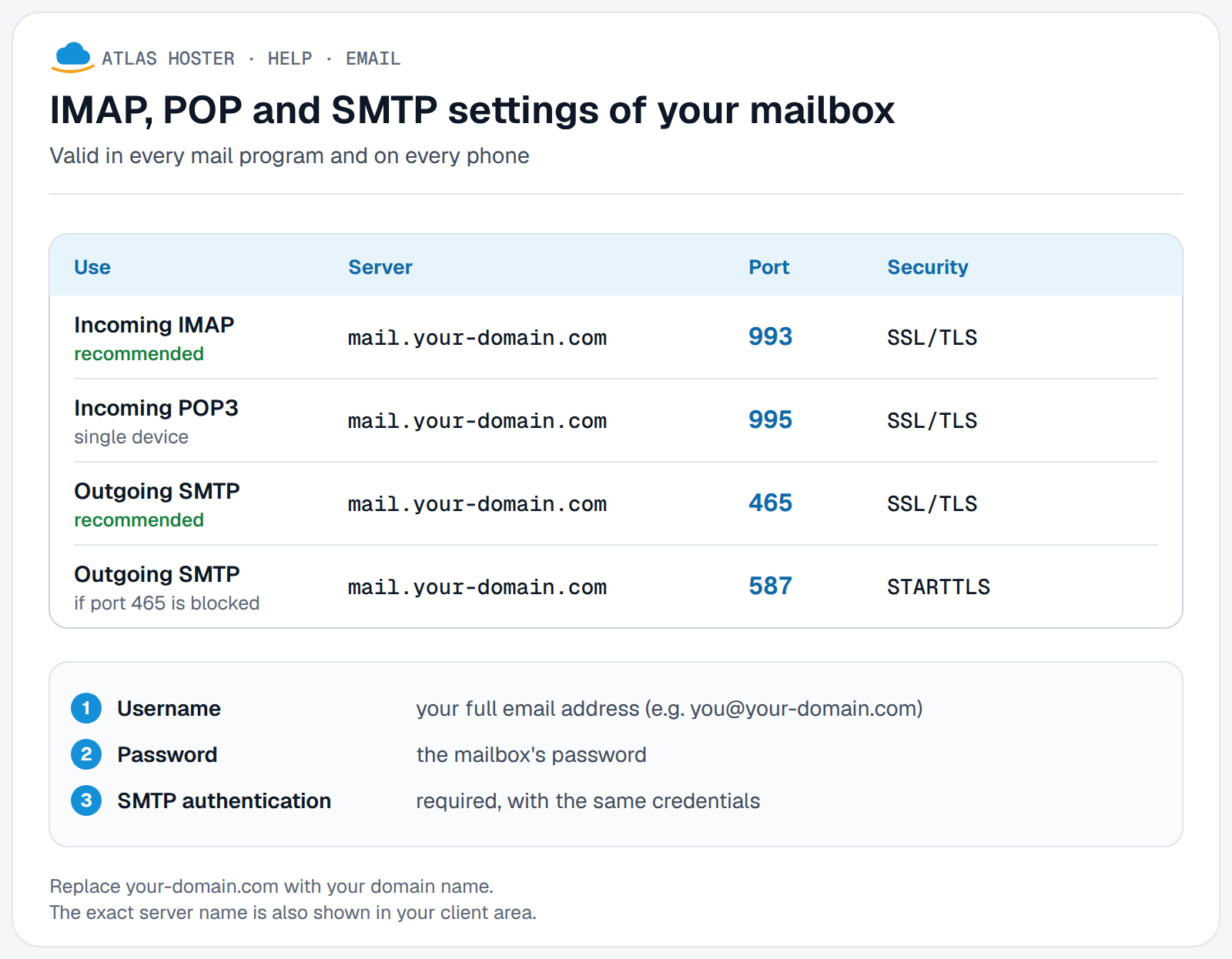
| Setting | Value |
|---|---|
| Username | your full email address, you@your-domain.com |
| Password | the mailbox password |
| Incoming server (IMAP) | mail.your-domain.com, port 993, SSL/TLS security (recommended) |
| Incoming server (POP3) | mail.your-domain.com, port 995, SSL/TLS security |
| Outgoing server (SMTP) | mail.your-domain.com, port 465, SSL/TLS security (recommended), or port 587 with STARTTLS |
| SMTP authentication | required: same username and password as for incoming mail |
Steps
1. Find the exact values for your mailbox
- Log in to cPanel (see Log in to cPanel).
- Open Email › Email Accounts.
- Click Connect Devices next to your address. The Set Up Mail Client screen opens.
- Scroll down to Mail Client Manual Settings and read the Secure SSL/TLS Settings (Recommended) block: it gives the username, the incoming and outgoing servers and the ports.
- To send them to another device, enter an address in the Email Instructions box and click Send.
2. Choose IMAP or POP
- IMAP (recommended): messages stay on the server, and all your devices and webmail show the same content. Sent and filed messages stay in sync.
- POP3: the app downloads all the messages of the account and then removes them from the server. You can no longer read them from another device. Keep it for a single device, when you know why.
3. Choose the sending port
- 465 with SSL/TLS: the connection is encrypted from the start. This is the recommended value.
- 587 with STARTTLS: the connection opens, then switches to encrypted. Try it if your app or network does not accept port 465.
In both cases, turn on authentication for the outgoing server with the same credentials as the incoming server.
Expected result
Your app connects to the incoming server and shows the messages of your mailbox. A test message sent from this address goes out without asking for extra credentials.
If something goes wrong
- Credentials refused: the username is the full email address, not just the part before the
@. Try the same password in webmail (see Log in to webmail). - Certificate warning: the server name you enter must be the one shown on the Connect Devices screen. According to cPanel, the name used is your domain when it has a valid SSL certificate, and the server's name otherwise. Use the name shown, and do not turn off certificate checking.
- You can receive but not send: check that authentication for the outgoing server is on, then try the other sending port (465 or 587).
- Cannot connect: check that each port matches its security type (993 and 995 with SSL/TLS, 465 with SSL/TLS, 587 with STARTTLS). cPanel advises against the unencrypted ports 143 (IMAP) and 110 (POP3): do not use them.
Frequently asked questions
What is the difference between IMAP and POP?
With IMAP, messages stay on the server and sync across all your devices. With POP, they are downloaded and then removed from the server: they only exist on the device that downloaded them.
Which SMTP port should I use: 465 or 587?
Start with 465 with SSL/TLS. If your app or network refuses it, try 587 with STARTTLS. In both cases, authentication is required.
Do I enter the full address as the username?
Yes. The username is the whole email address, for example you@your-domain.com.
Are the incoming and outgoing servers different?
No: the same name template applies to both, mail.your-domain.com. Only the ports change.
Related articles
- Set up your email address in Outlook
- Set up your mailbox on iPhone and iPad
- Set up your mailbox on Android
- Log in to webmail (Roundcube)
An address on your own domain name? Discover our business email plans.