Set up your business email on Android (Gmail app)
To read and send your business email on an Android phone, the simplest way is to add your address as an IMAP account in the Gmail app. You need your full address, the mailbox password and the servers of your mail service.
Before you start
- Have your full email address and the mailbox password at hand (see Create a business email address in cPanel). Test them first in webmail.
- Keep the settings from IMAP, POP and SMTP settings in view: server
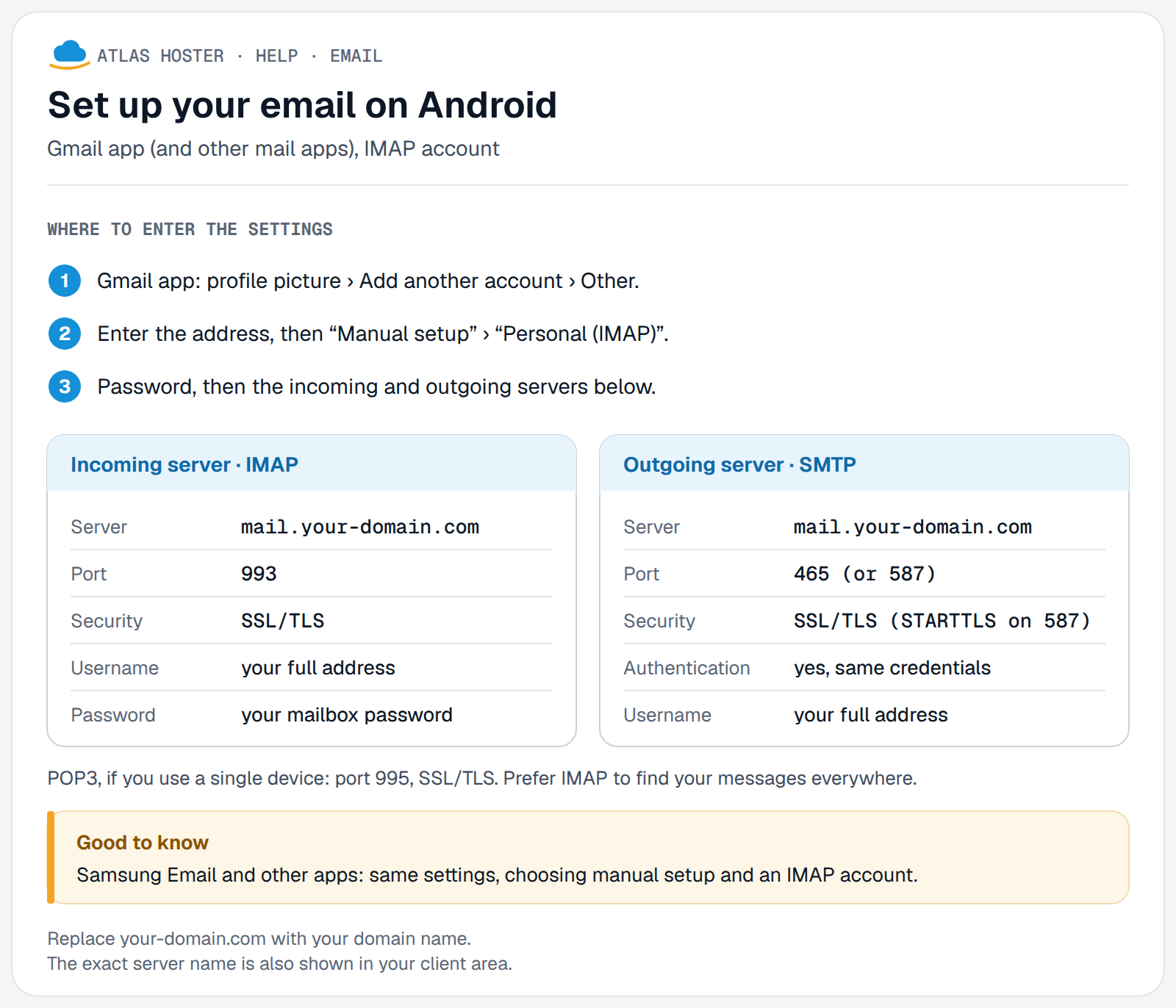
mail.your-domain.com, ports 993 (incoming) and 465 (outgoing). The exact values for your mailbox are shown in cPanel, under Email Accounts › Connect Devices. - Install and open the Gmail app on the phone. It accepts addresses from other providers, up to five addresses in total.
Steps
- Open the Gmail app.
- At the top right, in the search bar, tap your profile picture.
- Tap Add another account, then Other.
- Enter your full email address, then tap Next.
- Select Personal (IMAP).
- Enter the mailbox password, then tap Next.
- Enter the incoming server settings: server
mail.your-domain.com, port 993, security SSL/TLS, username: the full address. - Enter the outgoing server (SMTP) settings: server
mail.your-domain.com, port 465, security SSL/TLS (or 587 with STARTTLS), with sign-in turned on and the same credentials. - Follow the on-screen instructions to finish linking the account.
Another route: open the phone's Settings, then the account management entry ("Passwords & accounts" in Google's documentation; depending on the phone, a similar name such as "Users & accounts" or "Manage accounts"). Tap Add account, choose Personal (IMAP) and follow the on-screen instructions. Google says to choose this account type when you use an email program such as Microsoft Outlook or Apple Mail.
These labels come from Google's help; they may vary with the app version and the phone maker (Samsung, Xiaomi, etc.).
Expected result
Your address appears in Gmail's account menu, with its inbox. Your messages load, and a message sent from this address goes out without error.
If something goes wrong
- "Email security not guaranteed": this warning appears when the security type you chose is not the highest one. Check that you chose SSL/TLS for port 993 and for port 465. Do not choose None: it would send your credentials unencrypted.
- "Untrusted certificate": the server name you entered must be the one shown in cPanel, under Connect Devices. If the message persists, contact our support with the exact text of the error.
- Password refused: the username is the full email address. Test the same password in webmail.
- You can receive but not send: check that the outgoing server uses the same credentials, then try port 587 with STARTTLS (see IMAP, POP and SMTP settings).
- Sync does not start: see Google's help on Gmail app sync problems, then come back here to check your settings.
Frequently asked questions
Do I have to use the Gmail app for a non-Gmail address?
Not necessarily, but it is the simplest method: the Gmail app accepts addresses from other providers over IMAP. You can also use another mail app or the route through the phone's settings.
IMAP or POP on Android?
IMAP. Messages stay on the server and are the same on the phone, the computer and in webmail.
How many addresses can I add to Gmail?
Google states up to five email addresses in the Gmail app.
My phone is not a Pixel: does that change anything?
The steps inside the Gmail app are the same. Only the names of the phone's Settings menus change from one maker to another.
Related articles
- IMAP, POP and SMTP settings for your mailbox
- Set up your mailbox on iPhone and iPad
- Log in to webmail (Roundcube)
Your business email, with you everywhere? Discover our business email plans.