Set up your email address in Outlook (Windows, Mac and new Outlook)
To read your business email in Outlook, you add your address as an IMAP account with the right servers and ports. This article covers classic Outlook and new Outlook on Windows, as well as Outlook for Mac.
Before you start
- Have your full email address and the mailbox password at hand (see Create a business email address in cPanel). Test them first in webmail.
- Identify your Outlook version: classic Outlook has a File tab on the ribbon; new Outlook does not. If you are unsure, try the "classic Outlook" method and switch to the other if the File tab is missing.
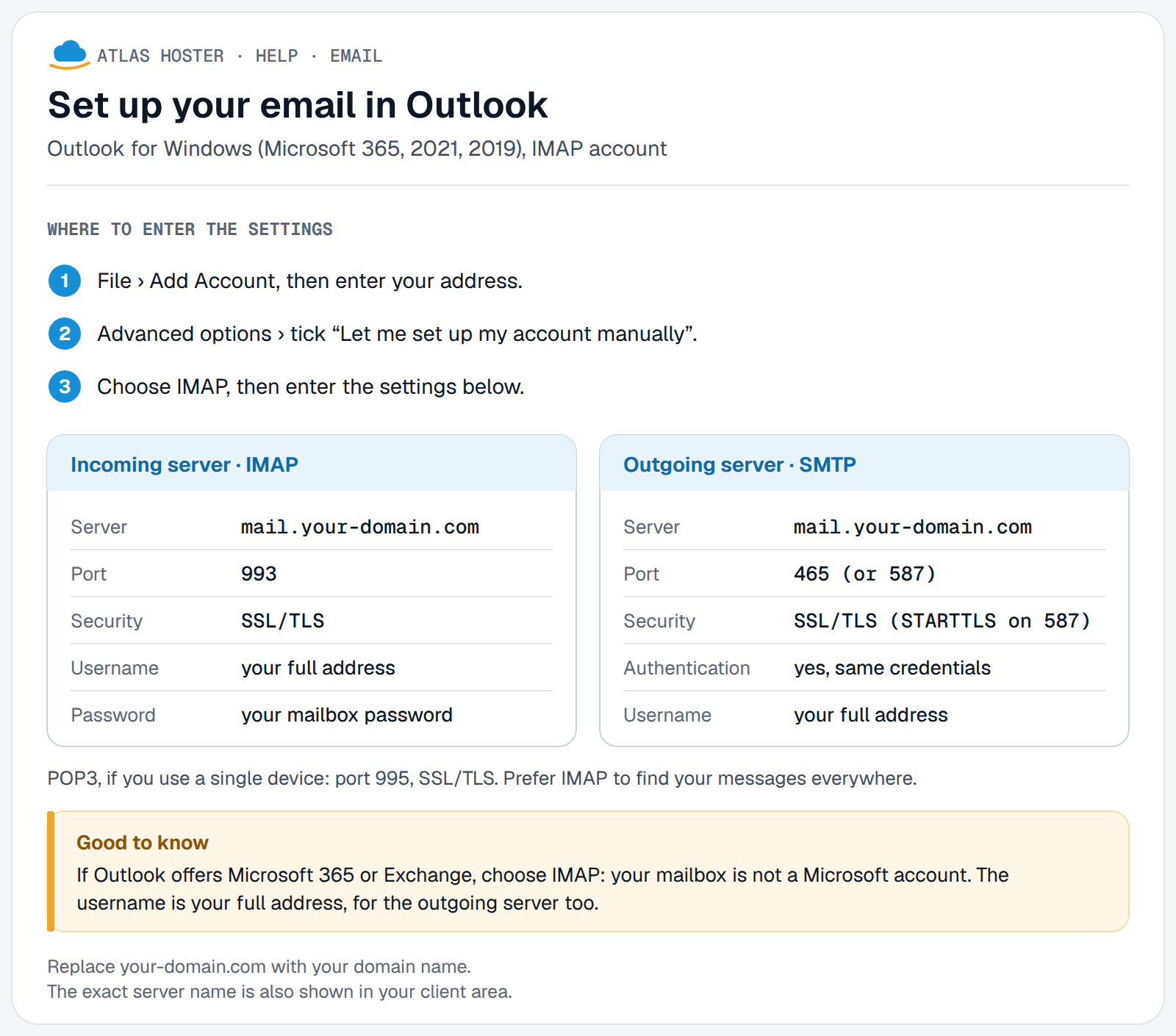
- The settings to enter (server
mail.your-domain.com, ports 993 and 465) are detailed in IMAP, POP and SMTP settings. The exact values for your mailbox are shown in cPanel, under Email Accounts › Connect Devices.
Steps
Classic Outlook for Windows
- In Outlook, select File › Add Account.
- Enter your full email address, then select Advanced options.
- Tick Let me set up my account manually, then select Connect.
- Choose the IMAP account type.
- On the settings screen, enter:
- incoming server:
mail.your-domain.com, port 993, SSL/TLS encryption; - outgoing server:
mail.your-domain.com, port 465, SSL/TLS encryption (or 587 with STARTTLS); - then select Next.
- incoming server:
- Enter the mailbox password, then select Connect.
- Select Done.
The steps are the same for your first address and for the next ones.
New Outlook for Windows
- On the View tab, select View settings (or, on the File tab, Account Information).
- Select Accounts › Your accounts.
- Under Email accounts, select Add account, enter your full email address, then Continue.
- If Outlook asks, enter the mailbox password, then select Done.
If new Outlook cannot find the settings for your mailbox, use classic Outlook (method above): that is where Microsoft describes entering the servers manually.
Outlook for Mac
- In Outlook, open the Outlook menu › Settings.
- In the side panel, select Accounts, then + Add Account.
- Enter your full email address, select Continue and follow the prompts. If Outlook asks for the servers, enter the values from the table in IMAP, POP and SMTP settings.
- Select Done.
These labels come from Microsoft's documentation; they may vary slightly with your version of Outlook.
Expected result
Your address appears in Outlook's list of accounts, with its folders (Inbox, Sent Items…). A message you send to yourself arrives in the inbox.
If something goes wrong
- Outlook never asks for the password: on the IMAP details page, check that "Require logon using Secure Password Authentication (SPA)" is turned off.
- Outlook keeps asking for the password: check that Caps Lock is off and that the username is the full email address. If you changed the mailbox password, update it in Outlook too.
- Setup fails: choose Change Account Settings, correct the server, port or encryption using the table in IMAP, POP and SMTP settings, then select Connect again.
- You can receive but not send: check that the outgoing server requires authentication with the same credentials, then try port 587 with STARTTLS.
- A message asks you to create an "app password": this message applies to providers such as Gmail or iCloud. For a mailbox on your hosting, use the mailbox password; if the message persists, contact support.
Frequently asked questions
Should I choose IMAP or POP in Outlook?
IMAP, unless you have a specific reason: messages stay on the server and are identical in Outlook, webmail and your phone. With POP, Outlook downloads the messages and then removes them from the server.
Which username should I enter?
The full email address, for example you@your-domain.com.
Can I add several addresses to Outlook?
Yes. Repeat the same steps for each address: they are identical for the first account and the following ones.
Will my old messages appear in Outlook?
With IMAP, Outlook shows the messages and folders that are in the mailbox on the server. Messages you had already downloaded with POP on another computer are not there.
Related articles
- IMAP, POP and SMTP settings for your mailbox
- Log in to webmail (Roundcube)
- Set up your mailbox on iPhone and iPad
- Set up your mailbox on Android
A business address on all your devices? Discover our business email plans.