Set up SPF, DKIM and DMARC for your domain
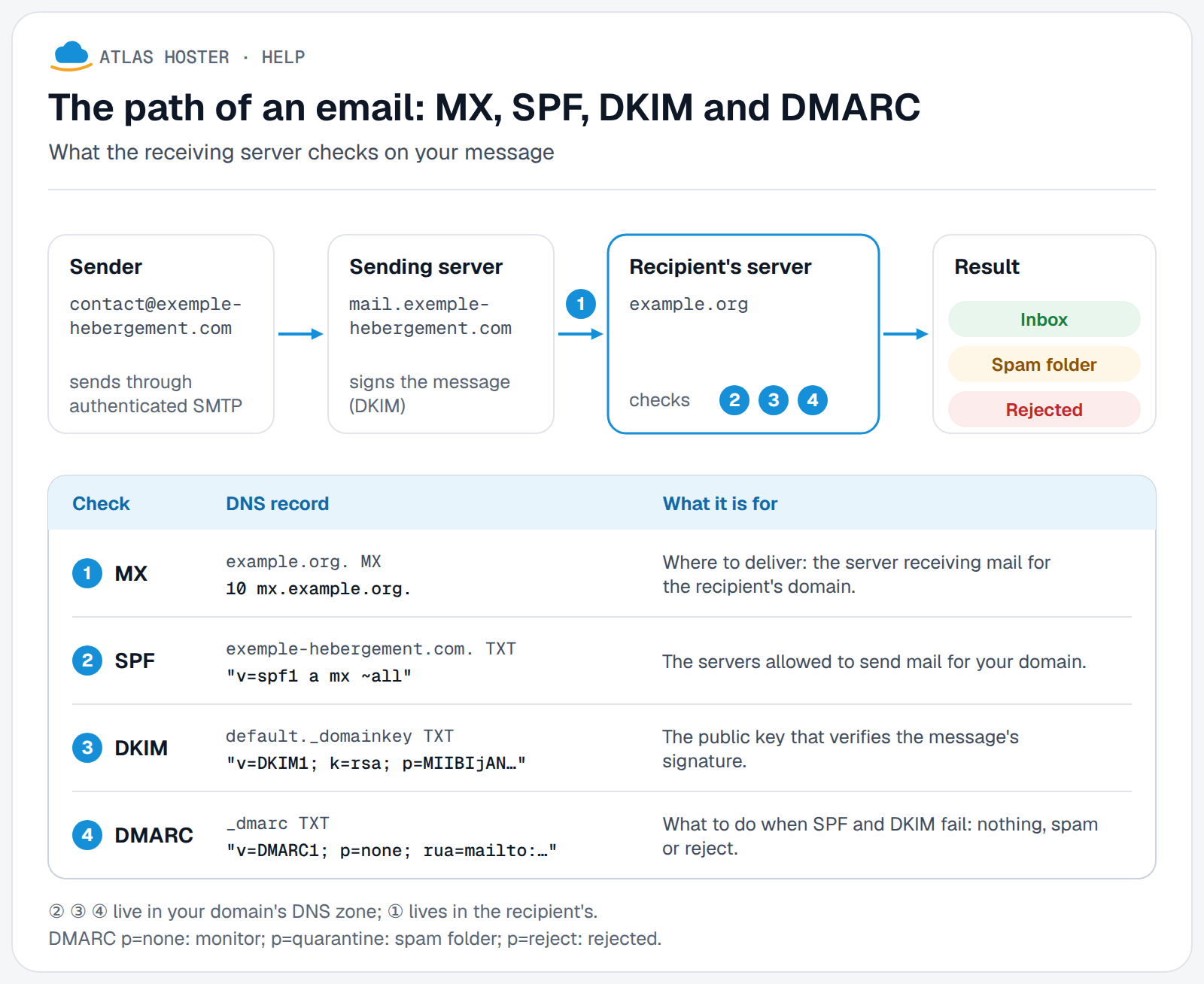
SPF, DKIM and DMARC are three DNS records that prove to your recipients' servers that your emails really come from your domain. Without them, your messages may land in spam or be rejected.
Before you start
- You can log in to cPanel (see Log in to cPanel).
- Find out where your domain's DNS zone is managed: on the hosting's name servers, or with another provider (your registrar, a DNS service). This decides which method below applies. To check, see Change your domain's DNS servers.
- If you also send email from an outside service (newsletter, invoicing tool), note its name: it has to be added to the SPF record.
How the three work together
- SPF lists the servers allowed to send email for your domain.
- DKIM adds a signature to every message. The recipient checks it with a public key published in your DNS.
- DMARC tells the recipient what to do when SPF and DKIM fail: nothing, put it in spam, or reject it.
Steps
1. See the state of your domain
- In cPanel, open the Email section, then Email Deliverability.
- The table lists your domains and the state of their records. If a domain is flagged with a problem, click Repair: cPanel suggests the correct records. You can review, copy or customise them, then confirm.
- Repair is not available when the server does not manage the domain's DNS: use Manage and the manual method below.
2. DKIM
- Click Manage next to the domain, DKIM section.
- If there is no key, click Generate Local DKIM Key.
- If the domain's DNS is managed elsewhere, click Copy to copy the name and value of the suggested TXT record (the name looks like
selector._domainkey.your-domain.com), then add this TXT record with the provider that manages the DNS. - Never share the private key (View the Private Key): whoever gets it can sign messages while pretending to be you.
3. SPF
- In Manage, SPF section, cPanel shows the suggested record. If the DNS is managed elsewhere, copy it as for DKIM.
- To add an outside service, click Customize, then add its name in the Include List (INCLUDE) (the service gives it to you). Click Install a Customized SPF Record.
- A typical value looks like this (the address
203.0.113.10is fictitious):
v=spf1 a mx ip4:203.0.113.10 ~all
The end of the record says what to do with senders that are not listed: ~all (cPanel's default recommendation) accepts them but flags them as suspicious; -all (the Exclude All Other Hosts setting) makes them fail.
Two rules: a domain must have only one SPF record (several records are not permitted), and it must not trigger more than 10 DNS lookups (for example through too many include entries).
4. DMARC
- DMARC only works if SPF and DKIM are valid: do steps 2 and 3 first.
- In Manage, DMARC section, cPanel suggests a record. If the server manages the domain's DNS, click Install the Suggested Record. Otherwise, copy it and add it with your DNS provider.
- To enter it by hand, create a TXT record named
_dmarc, with a value like:
v=DMARC1; p=none; rua=mailto:dmarc@your-domain.com
p=none observes without blocking anything; rua is the address that receives the reports. When your reports show no more errors, you can move to p=quarantine, then p=reject.
5. Add a TXT record by hand in cPanel
If your DNS is on the hosting, you can also use Zone Editor: click Manage next to the domain, then Add Record and choose the TXT type.
Expected result
In Email Deliverability, the domain is no longer flagged with a problem, and the DKIM, SPF and DMARC sections of Manage no longer show a suggested record to fix. For an end-to-end check, send a message to a Gmail address, open it, then click More › Show original: the authentication headers show the result of SPF, DKIM and DMARC.
If something goes wrong
- The record does not seem to be taken into account: a new DNS record takes some time to be seen everywhere (see DNS propagation). Check again later.
- Repair is greyed out: the domain's DNS is not managed by the server. Copy the records and add them with the provider that manages the DNS.
- Messages sent from your website's form fail DKIM: contact us, this case depends on the server's configuration.
- DMARC does not seem active: SPF and DKIM must be valid for the same domain as the sender of your messages.
- You use an outside service and its messages fail: add it to the SPF record (Include List) and turn on its own DKIM signing, following its documentation.
Frequently asked questions
Are SPF, DKIM and DMARC mandatory?
For Gmail, every sender must set up at least SPF or DKIM; those who send more than 5,000 messages a day to Gmail addresses must also set up DMARC. In all cases, the three clearly improve how your messages are received.
Which value should I choose for DMARC at first?
p=none: it blocks nothing and gives you reports. Once everything is correct, tighten the policy step by step.
Can I have several SPF records?
No. One record per domain; to allow several services, group them in that record with include:.
Where is the DKIM key?
The public key is in your DNS zone; the private key stays on the server and is shared with nobody.
My emails still land in spam, what can I do?
SPF, DKIM and DMARC are necessary but not sufficient: see My emails land in spam at the recipient.
Related articles
- My emails land in spam at the recipient: what to do
- Change your domain's DNS servers (nameservers)
- DNS propagation: how long it takes and how to check it
Need an email address on your own domain name? Discover our business email plans.