DNS propagation: how long it takes and how to check it
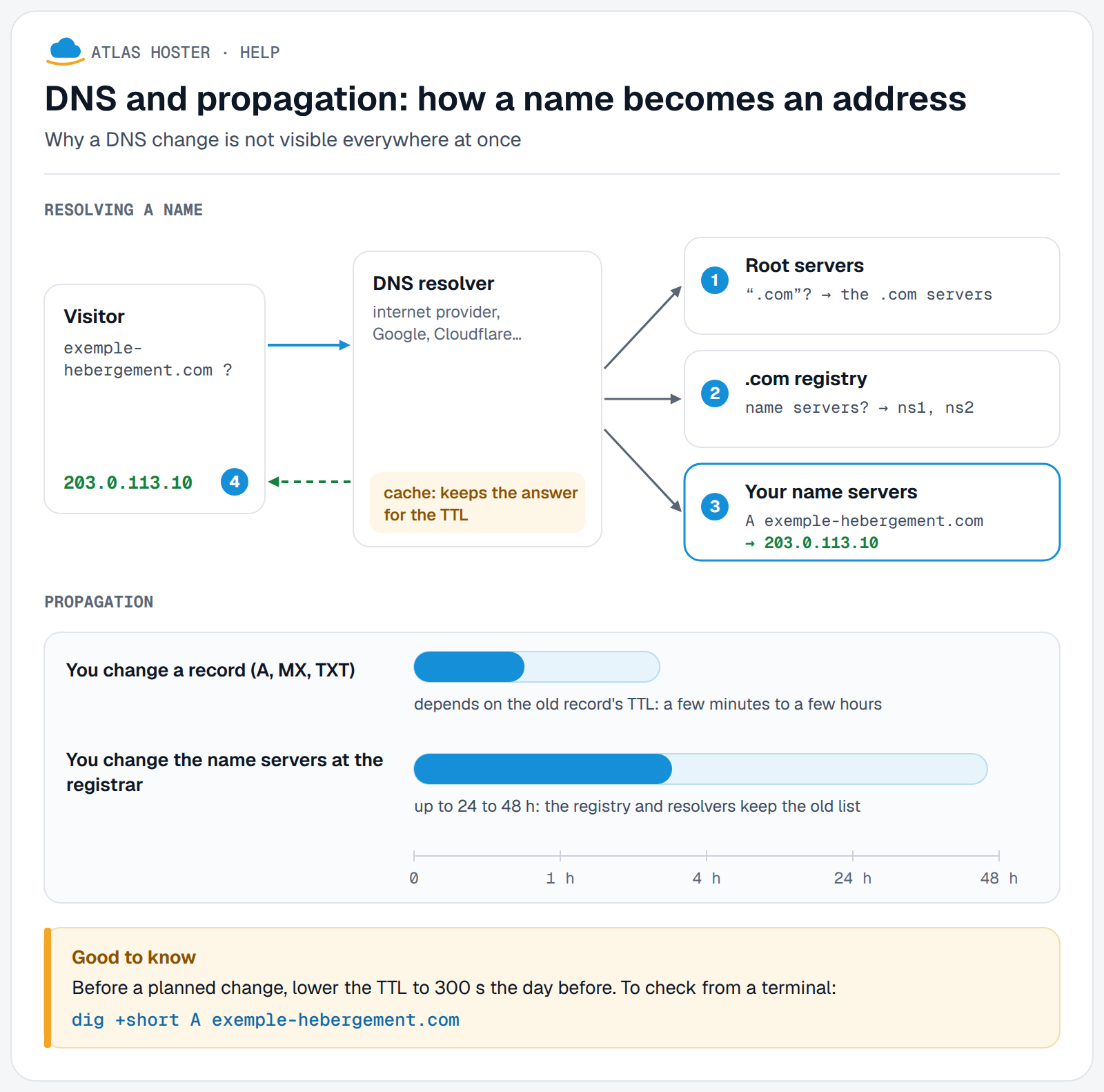
You just changed a DNS record or your domain's nameservers, and your website or email does not follow yet? That is normal: a DNS change is not visible everywhere at the same moment, because each internet provider keeps answers in memory (a "cache") for a set time.
Before you start
- Know what you changed: a record (A, MX, TXT, CNAME) or the domain's nameservers. The times are not the same.
- Have at hand the domain name and the new value you expect (for example the new IP address).
What sets how long it takes
- The TTL ("time to live") of the record: how long a resolver keeps the answer before asking again. A changed record is visible everywhere once the TTL of the old value has run out: from a few minutes to a few hours.
- The nameservers: changing them takes longer, because the registry and the resolvers all have to take it into account. Allow up to 24 to 48 hours, and sometimes more: cPanel's documentation speaks of two days or more. No duration is guaranteed.
- Your own computer and browser, which also keep a copy of the answers.
Check the propagation
Open a private browsing window: it avoids the copy your browser keeps. Also try from a phone on mobile data, which uses another resolver.
Ask a public resolver for the answer. On Windows:
nslookup your-domain.com 8.8.8.8(the second parameter is the DNS server asked). On Linux or macOS:dig your-domain.com A @8.8.8.8 +short. Repeat with1.1.1.1: if both return the new value, propagation is well under way.Ask the domain's own nameservers, for example
dig your-domain.com A @ns1.exemple-hebergeur.net +short, replacing the server with one of yours. This is what you actually publish: if their answer is still the old one, the change was not saved in the zone, and waiting will not help.Clear your computer's cache if only your machine sees the old value:
- Windows:
ipconfig /flushdns - macOS:
sudo dscacheutil -flushcache; sudo killall -HUP mDNSResponder
This only changes what you see: other visitors depend on their own caches.
- Windows:
In your client area, a Check the propagation tool compares, in one go, your domain's nameservers and several public resolvers (Cloudflare, Google, Quad9, OpenDNS). It is available to contacts with technical access, if our team has opened the feature for your account.
Expected result
All resolvers, and the nameservers, return the same new value, and your website (or your email) works from several networks.
If something goes wrong
- The nameservers return the old value. The change is not saved in the DNS zone: check the line in your DNS records, then do it again.
- Answers differ from one resolver to another. Some keep the old value until the TTL expires. Wait and run the check again later.
- The domain no longer answers at all after a nameserver change. The new servers may not know your domain, or DNSSEC was left on. See How to change the DNS servers of your domain name.
- You need cPanel before the domain points to the hosting. Use the server's IP address and port 2083, for example
https://server-ip-address:2083: see Log in to cPanel. The browser may warn about the certificate, which is expected when you go through the IP address.
FAQ
How long does DNS propagation take?
It depends on what changed and on the TTL. A changed record is usually visible after a few minutes to a few hours; a nameserver change can take a day or two, sometimes more. No duration is guaranteed.
Why do I see the new site and my colleague does not?
Your resolvers do not have the same cache. Each person sees the new site when their own internet provider's cache expires.
Does clearing the DNS cache speed up propagation?
No, only what your computer shows. Propagation depends on internet providers' caches, which you do not control.
Can my email get lost during propagation?
During the switch, some sending servers still use the old MX record. If your old mail service is still active, it keeps receiving; turn it off only once propagation is complete.
Do I have to wait before changing a record again?
No, but every change starts a new delay: change, check, and only then change again once you have seen the result.