Add an extra domain or an alias to your cPanel hosting
A cPanel hosting can serve several domain names. Depending on what you want, you add an addon domain (a second website, with its own folder) or an alias (an extra name that shows the same site as your primary domain).
Before you start
- The domain must already be registered, with us or elsewhere: cPanel cannot buy or renew it. See Buy a domain name.
- Choose between the two types:
- addon domain: the name has its own folder of files, so its own website;
- alias: the name shares your primary domain's folder and shows exactly the same content.
- The name must point to your hosting for visitors to see it, which is set at the registrar: see How to change the DNS servers of your domain name. You can do this step before or after adding the domain in cPanel.
- If the creation screen is missing from your cPanel, adding domains is not included in your plan; the screen also shows the state of your quotas.
Add the domain in cPanel
- Log in to cPanel: see Log in to cPanel.
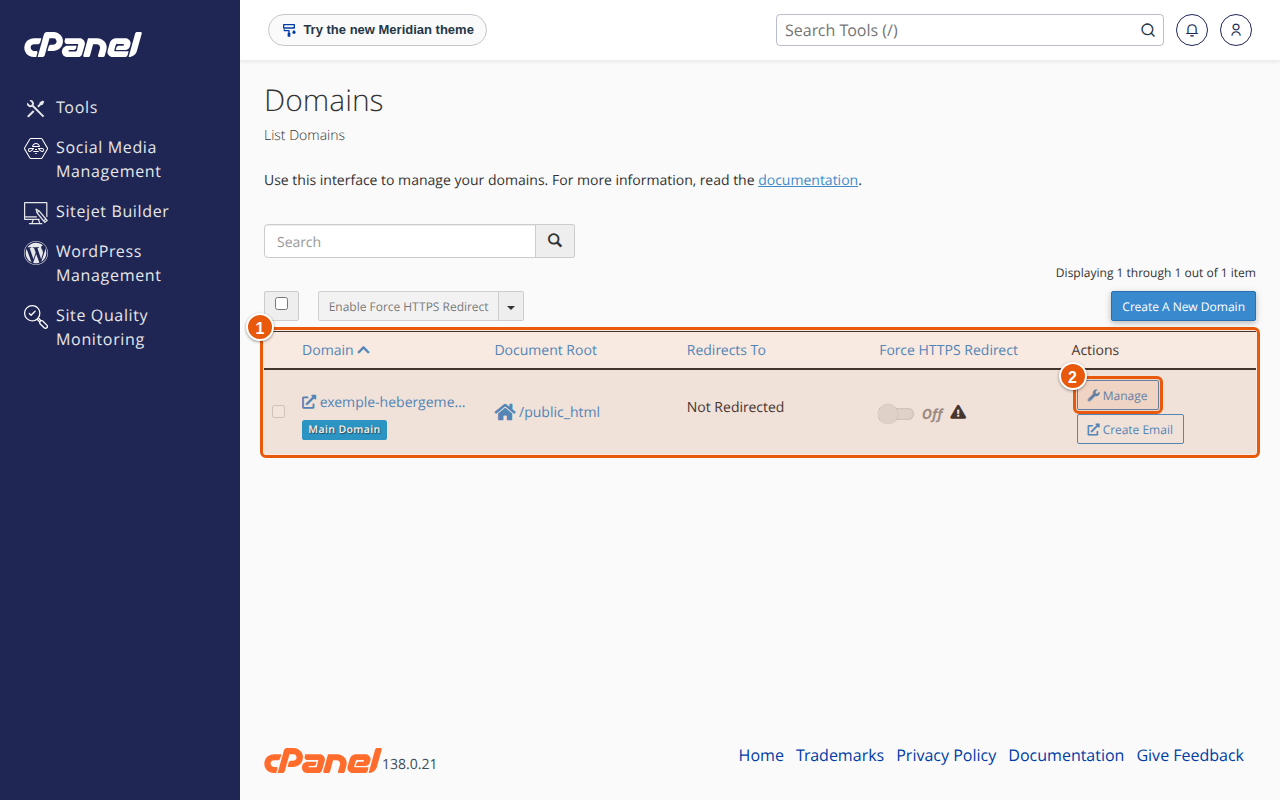
- On the Tools home, open Domains. The list shows your domains, their Document Root (the site's folder) and their actions. Your original domain is labelled Main Domain.
- Click Create A New Domain.
- Choose Registered Domain, then enter the full name in the Domain field, for example
exemple-hebergement.com. - Decide on the folder:
- for an addon domain, leave the Share document root box unticked: cPanel suggests a folder, which you can keep as it is (it is always inside
public_html); - for an alias, tick Share document root: the name will show the main domain's site. This choice is permanent.
- for an addon domain, leave the Share document root box unticked: cPanel suggests a folder, which you can keep as it is (it is always inside
- Click Submit (or Submit and Create Another to add another one).
The new domain appears in the list. Click Manage to change its folder, rename it or remove it.
Put the site online
- Put the new site's files in the domain's folder, with the File Manager or over FTP. The link in the Document Root column takes you straight there.
- To create an email address with this domain, click Create Email next to the domain in the list, or open Email › Email Accounts.
- Check that the browser's padlock shows on the new domain: cPanel tries to secure the added domain with an existing certificate; failing that, it uses a self-signed certificate, which browsers flag with a warning. The SSL/TLS Status screen shows the state of each domain; if one has no valid certificate, write to us from Support.
- Once the certificate is in place, turn on Force HTTPS Redirect in the domain list to send visitors to the secure version. This option does not appear for an alias, and requires a valid certificate.
Expected result
The domain is in the Domains screen's list, with its folder. Once it points to the hosting, it shows the site placed in that folder (or the main domain's, for an alias).
If something goes wrong
- The "Create A New Domain" button is missing. Adding domains is not enabled for your plan: write to us from Support in your client area.
- cPanel refuses the name. Note the message shown and open a request from Support attaching it.
- An error page or the default page shows. The folder is empty or the domain does not point to the hosting yet: check both, then the propagation.
- I cannot change a domain's folder. It is not possible for the primary domain or for domains that share its folder. For the others, cPanel does not move your files: move them yourself to the new folder.
- I want to merge two hosting accounts into one. Add the second domain as an addon domain, copy its files and databases into the new folder, then open a request from Support to close the other account.
FAQ
What is the difference between an addon domain and an alias?
An addon domain has its own folder and its own website. An alias shares the primary domain's folder: both names show the same site.
How many domains can I add?
It depends on your plan. The creation screen shows the state of your quotas.
Can I buy a domain from cPanel?
No. cPanel can neither register nor renew a domain: that is done with us or with your registrar.
What happens to my site if I remove a domain in cPanel?
Only the domain's settings and its DNS records are removed; the folder and its contents stay on the server. Still, make a full backup first. The domain's email addresses disappear from the list, but their mail folders stay, and they come back if you add the domain again.
Can my alias have its own email address?
Yes: click Create Email next to the domain in the list to create email addresses with that name.