Back up your site, emails and databases in cPanel
A backup is a copy of your site, databases and emails that you keep outside your hosting. cPanel lets you download a full one or copy only part of your account.
Before you start
- Have your cPanel credentials ready: see Log in to cPanel. If you open cPanel from your client area, the Your hosting card also offers a Backups button that opens the backup page directly (this card only appears if our team has enabled the feature for your account).
- Make sure your account has free space: according to cPanel, the backup of an account near or over its quota can fail because the system cannot write the files it needs. See Disk space full in cPanel.
- The Backup and Backup Wizard screens only appear if your hosting provider has enabled them for your account.
- The labels below come from cPanel's official documentation, in English; the French version of your cPanel may translate some of them.
Steps
Download a partial backup (the most common)
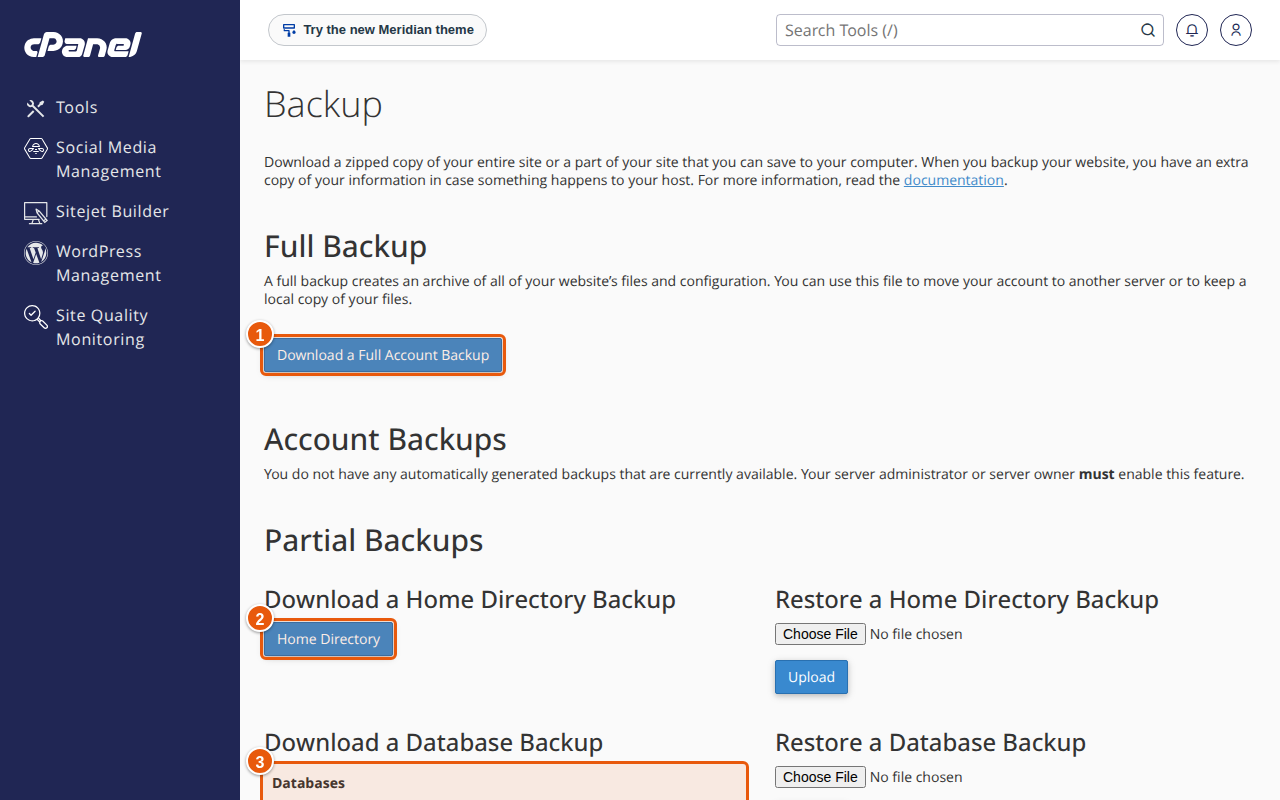
- In cPanel, open Files › Backup.
- Under Partial Backups, click the name of what you want to copy:
- Home Directory: all your files, including
public_htmland the email of your account's domains; - a database, listed under Databases;
- a domain, under Forwarders, for your email forwarders;
- System Filter Info, for the account's global email filters.
- Home Directory: all your files, including
- Your browser downloads a
.gzfile to your downloads folder.
Create a full backup
- In cPanel, open Files › Backup, or Files › Backup Wizard if you prefer a wizard (cPanel aims it at less experienced users).
- In Backup, under Full Backup, click Download a Full Account Backup. In the wizard, click Back Up, then Full Backup.
- In Backup Destination, choose Home Directory: the file is written on the server, in your home directory. Remote FTP Server, Remote FTP Server (passive mode transfer) and Secure Copy (SCP) send the copy to another server; cPanel keeps them for advanced users.
- To be told when it is finished, enter your email address; otherwise tick Do not send email notification of backup completion.
- Click Generate Backup, then Go Back.
- When the backup is finished, it appears in the Backups Available for Download list. Click its name to download it. The file is named
backup-MM-DD-YYYY(today's date, in month, day, year order) followed by the.tar.gzextension.
Once downloaded, keep the copy on your computer or on an external drive: a copy that stays only in your home directory uses your quota and disappears with the account. You can then delete it from the server with the File Manager.
Expected result
You have a backup file on your computer: a .gz or .sql file for part of the account, a .tar.gz file for the full backup. To check that it is usable, open it with an archive tool: it holds your folders and databases.
If something goes wrong
- The full backup fails or does not appear: check your disk space. An account near its quota cannot write the temporary files it needs. Delete files you no longer need and try again.
- The Backup or Backup Wizard screens are missing: your hosting provider has not enabled them for your account. Contact support.
- You want to restore: cPanel only restores partial backups (Restore, then Choose File and Upload). It does not restore a full backup automatically: that is done in WHM, so by your hosting provider. To get back only the content of
public_html, unpack the full backup on your computer, then upload the files of thepublic_htmlfolder (underhomedir) with the File Manager. - A backup did not copy everything: the home directory backup does not contain files under
/homethat you do not own and cannot access.
FAQ
What is the difference between a full and a partial backup?
The full one gathers the account in a single .tar.gz file. Partial backups copy one part at a time (home directory, one database, email forwarders or filters) and can be restored entirely from cPanel.
What does the home directory backup contain?
All the files you own, including public_html, and the mail of the account's domains, plus files you do not own but can access.
Are my backups made automatically?
It depends on your hosting: cPanel notes that the automatic backups offered under Account Backups only exist if your hosting provider has enabled them. Check the list shown on that screen or ask support.
How often should I back up?
Before every important change (update, theme or PHP version change, migration), and at a pace that matches how often your content changes. A shop that takes orders every day does not have the same needs as a brochure site.
What about JetBackup?
JetBackup is a separate backup tool that some hosting providers install; it gives users a backup and restore interface. If it shows up in your cPanel, it is enabled for your account. This article describes cPanel's Backup screen.
Related articles
- Use cPanel's File Manager
- Disk space full in cPanel: find what takes up space
- Log in to cPanel: address, credentials and a tour of the interface
- Create additional FTP accounts in cPanel
A site to protect? Discover our backup offers.