Create a MySQL database and its user in cPanel
A dynamic site (WordPress, an online shop, a PHP application) stores its content in a database. In cPanel you create the database, create a user, then give that user the right to use it: this article walks you through all three.
Before you start
- You can log in to cPanel (see the article "Log in to cPanel").
- Choose a short name for the database and for the user. On cPanel they start with a prefix (your account name followed by
_) added automatically: it appears to the left of the input field. - The user name can only contain letters and digits. Its maximum length depends on the database server (32 characters with MySQL 5.7 and later, 47 with MariaDB, prefix included, according to the cPanel documentation).
- Prepare a strong password: cPanel can generate one.
Steps
- Open the databases screen. In cPanel, under "Databases", click Manage My Databases (on older cPanel versions the screen is called "MySQL Databases").
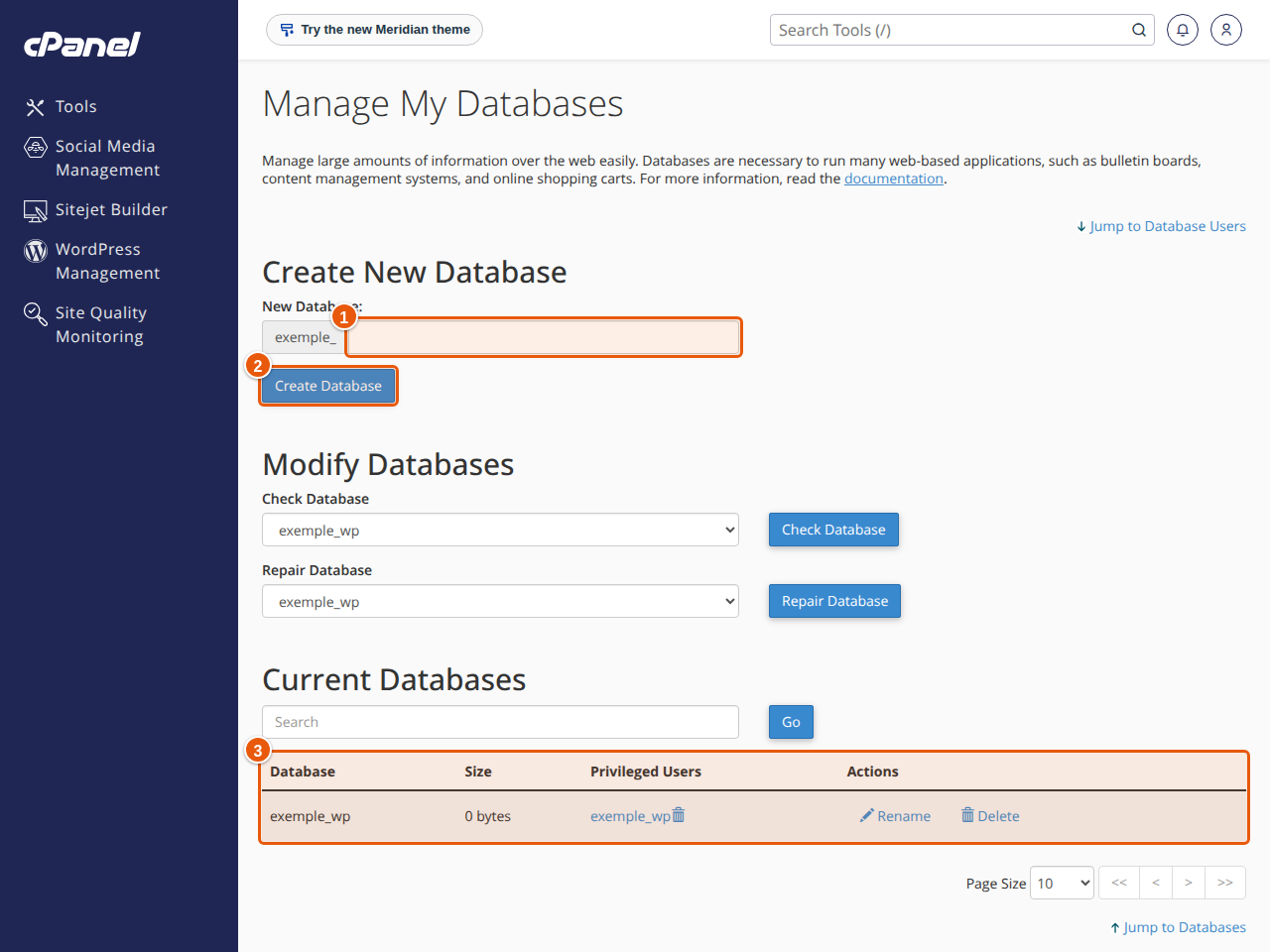
- Create the database. Under Create New Database, type the name in New Database then click Create Database. Then click "Go Back" to return to the main screen. The database appears in the Current Databases table.
- Create the user. Further down, under Add New User, enter the Username, then the Password and its confirmation (Password (Again)). The Password Generator offers a strong one; write it down right away, because cPanel will never show it again. Click Create User.
- Give the user the right to use the database. Under Add User To Database, choose the User and the Database, then click Add. On the next screen, tick ALL PRIVILEGES then confirm with "Make Changes". Click "Go Back" to return to the main screen.
- Write down the four values your site will need: the host (
localhost), the full database name, the full user name and its password. The article "Connect your PHP site to MySQL" explains where to put them.
Alternative: the wizard. The cPanel documentation recommends the Database Wizard screen (same "Databases" section) to create your first database. It chains the three operations in order: step 1, the database name; then the user and password; finally the privileges. In that case the user is automatically given access to the database: step 4 is not needed.
Expected result
The "Current Databases" table shows your database, with your user in the "Privileged Users" column. Your site can connect to it.
If something goes wrong
- The name is refused. A database name accepts any ASCII character except
/,",'and the backtick, and is limited to 64 characters (the prefix counts, and each underscore counts for two). For the user, use letters and digits only. - The password is refused. Some hosts require a minimum strength: look at the "Strength" indicator and use the generator.
- The site shows "Access denied". The user was not added to the database, or privileges are missing. Redo step 4.
- The database exists but the site cannot find it. The prefix is missing from the name typed in the site's configuration. Copy the name from the table.
- You created the database in phpMyAdmin. The cPanel documentation advises against it: phpMyAdmin does not register the database, which breaks backups and restores. Create it with cPanel instead.
FAQ
What is the prefix in front of my database name? It is a prefix, built from your account name and followed by an underscore, that cPanel adds automatically. It is part of the full name.
Can I recover a MySQL user's password? No, cPanel does not show it. In the "Current Users" table, you can set a new one with "Change Password".
What is the difference between a MySQL user and an email or FTP account? They are separate accounts: a MySQL user is only used to connect to a database. You must create it separately, and its password is not your cPanel password.
How many databases can I create? It depends on your plan. See the plan page or ask support.
Going further
Your site needs a MySQL or MariaDB database and a cPanel space: see our web hosting.