Change the PHP version and its limits (upload, memory) in cPanel
The PHP version and its limits (upload size, memory, run time) are set in cPanel, domain by domain. This article shows how to change a site's PHP version, then raise a limit such as upload_max_filesize or memory_limit.
Before you start
- You can log in to cPanel (see Log in to cPanel).
- Back up your site before changing version: an old theme or plugin may not work with a newer PHP version (see Back up your site, emails and databases in cPanel).
- Write down the current version, so you can go back if something goes wrong.
- The MultiPHP Manager and MultiPHP INI Editor screens only appear if your hosting provider has enabled them for your account.
Change a domain's PHP version
- In cPanel, open Software › MultiPHP Manager.
- In the Set PHP Version per Domain table, tick the domain to change (1). The PHP Version column shows the version in use today.
- In the PHP Version menu (2), choose the version you want. The Recommended label marks a version recommended by the server administrator.
- Click Apply (3).
- Open your site and test the main pages, the admin login and the forms.
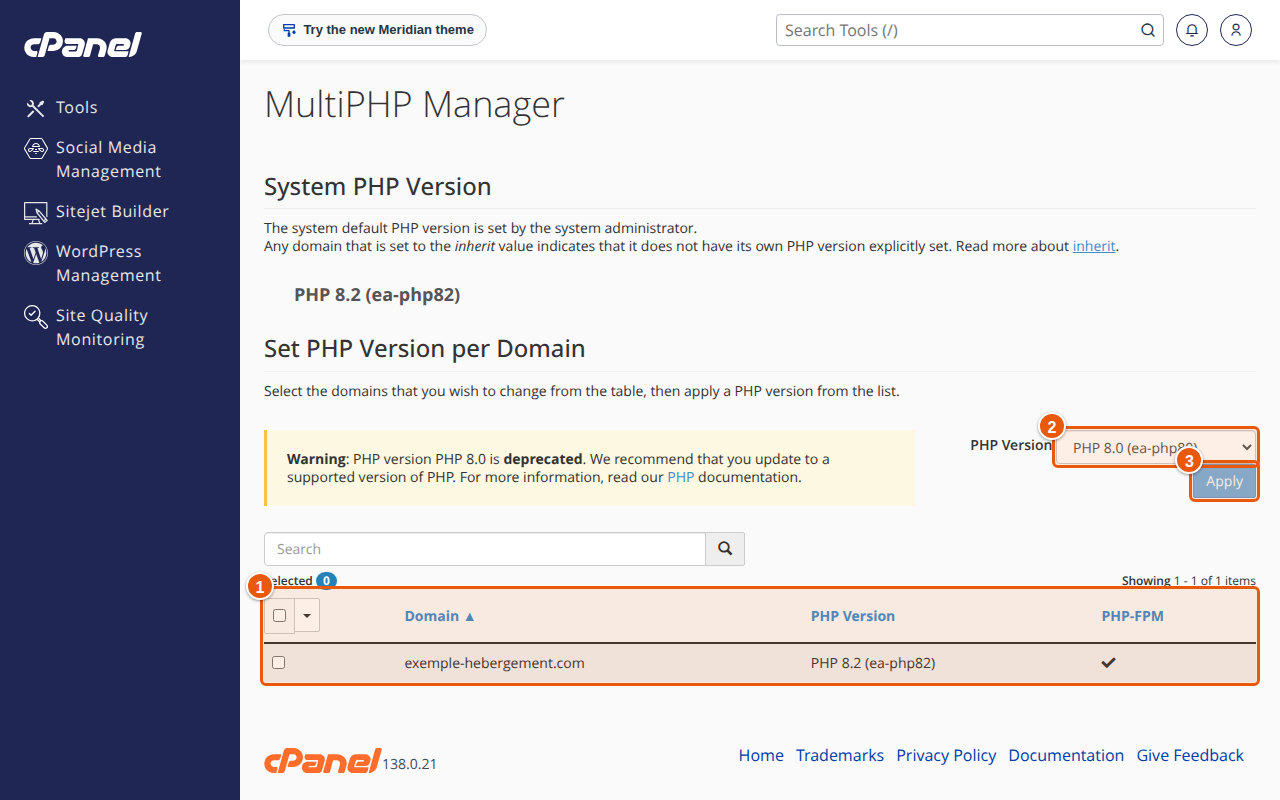
A few points, according to the cPanel documentation:
- The inherit value means that the domain follows the system's default PHP version, which only the administrator can change.
- If the version you want is not in the list, it is not installed on the server or not available for your account: open a support request (see Open a support request).
- A deprecated warning next to a version means PHP no longer maintains it: choose a newer version as soon as your site supports it. The official schedule is on the "Supported Versions" page of php.net.
Raise a PHP limit (uploads, memory)
- In cPanel, open Software › MultiPHP INI Editor.
- In the Basic Mode tab, open the Configure PHP INI basic settings menu and choose the domain concerned. Choose Home Directory to apply the setting to all the sites of the account.
- Change the directives you need. The most requested ones:
upload_max_filesize: the maximum size of an uploaded file;post_max_size: the maximum size of a form submission, to keep equal to or larger thanupload_max_filesize;memory_limit: the memory a script may use;max_execution_time: the maximum run time of a script, in seconds.
- Click Apply.
- If a directive does not appear, the PHP version you chose does not offer it: this is what the cPanel documentation says.
For a setting missing from the list, the Editor Mode tab opens the domain's php.ini file: keep it for advanced users, because a mistake can make PHP scripts unusable. To go back to the default values, delete the php.ini file of the domain or of the home directory.
Expected result
The MultiPHP Manager table shows the new version next to your domain, and the site works. After raising a limit, the upload that used to be refused goes through.
If something goes wrong
- The site shows a blank page or an error after the version change. A plugin or theme is not compatible. Go back to the previous version in MultiPHP Manager, then update the plugin or theme before trying again.
- The new limit is not taken into account. Check that you changed the right domain (or Home Directory), and that
post_max_sizeis not lower thanupload_max_filesize. Another setting may also limit uploads in your application (for example, WordPress shows its own limit in the media library). - The version menu only contains inherit. Your account follows the system version: ask support for the version you want.
- These screens are missing from cPanel. The hosting provider has not enabled them for your account: contact support.
Frequently asked questions
Which PHP version should I choose?
One that the PHP project still maintains, and that your site, themes and plugins support. If in doubt, try the next version on a copy of the site, or read your application's documentation.
Does the change apply to all my sites?
No: it applies to the ticked domain. Each domain can have its own version.
Can I raise upload_max_filesize without limit?
No. The larger the value, the more resources a script can use. Raise it just enough for your need.
Do I have to restart anything after the change?
Usually not. PHP may take a few minutes to re-read its settings, though: if nothing changes right away, wait a little. Also clear your site's cache if you have a caching plugin.
Related articles
- Log in to cPanel: address, credentials and a tour of the interface
- Back up your site, emails and databases in cPanel
- Install WordPress on your cPanel hosting
A growing site? See our web hosting plans.