Publish your website by FTP with FileZilla
FTP sends your site's files from your computer to your hosting. FileZilla is a free client that makes it simple: you drag your files from one side to the other.
Before you start
- An FTP account: the one that comes with your hosting, or one created in cPanel (see the article "Create additional FTP accounts in cPanel").
- FileZilla Client installed on your computer.
- Four pieces of information: the host, the username, the password and, if needed, the port.
- Your site's files ready in a folder on your computer, with your home page (for example
index.html).
Steps
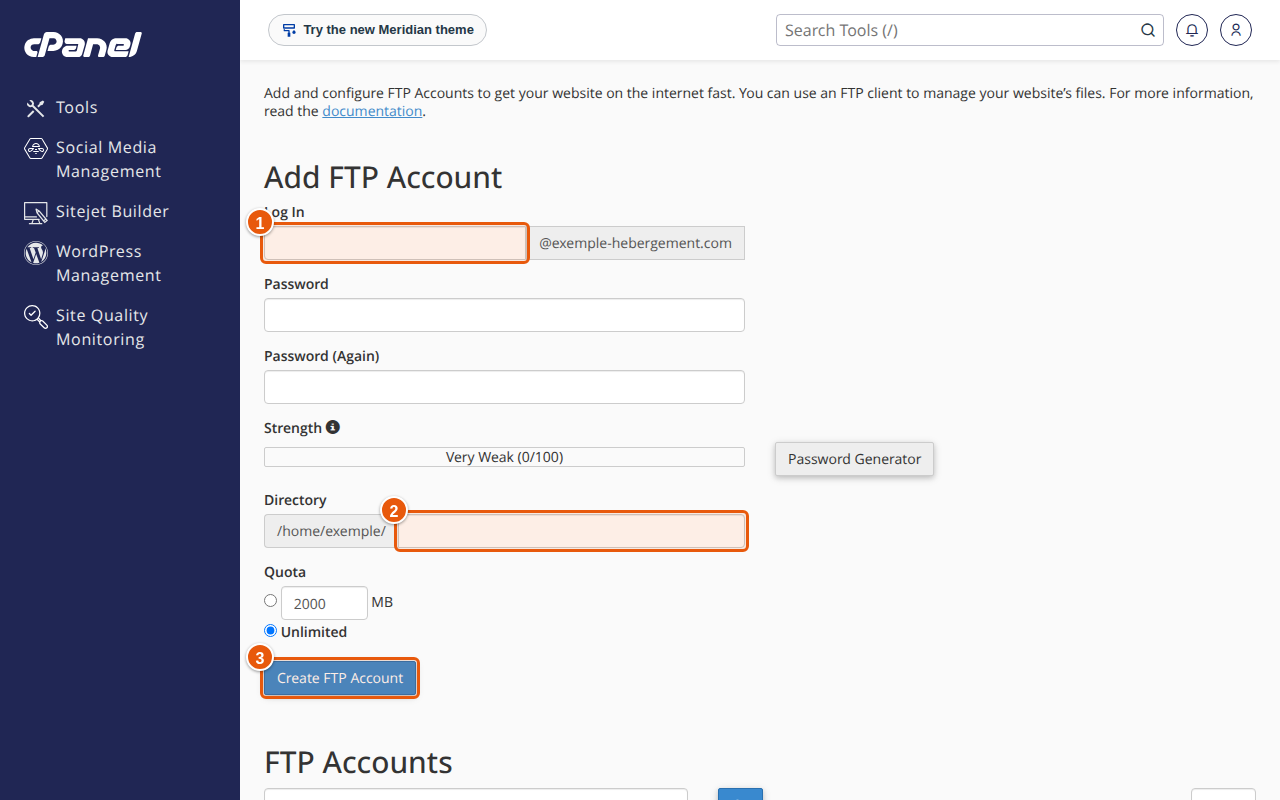
- Create an FTP account if you do not have one. In cPanel, open FTP Accounts. Fill in Log In (the account name), choose the domain, enter the password twice, then set the Directory this account can reach. Click Create FTP Account. The account appears in the "FTP Accounts" table.
- Work out the full username. If your account has no dedicated IP address, the cPanel documentation says to use the full username in the form
name@your-domain.com, not only the name entered in step 1. - Work out the host. Use the name of your hosting server. The cPanel documentation states that FTP does not support SNI: for an encrypted connection you must enter the server name, not your domain name. If you do not know it, ask support.
- Open FileZilla and connect. In the Quickconnect bar at the top, enter the host, the username and the password, then click Quickconnect. Leave the port empty: FileZilla uses 21, the default FTP port. To ask for TLS encryption, put
ftpes://in front of the host (explicit FTP over TLS, according to the FileZilla documentation); this assumes your hosting accepts it. To keep this connection, then use the File menu, Copy current connection to Site Manager…. - Open the right folder on the server. Your site's files go in the
public_htmlfolder (the web folder of the hosting, see the article "The public_html folder"). In the right-hand panel, double-clickpublic_html. - Upload your files. In the left-hand panel, open your site's folder on your computer, select the files, then drag them to the right-hand panel. The transfer shows in the queue at the bottom.
- Check. When the queue is empty, open your site in your browser and reload the page.
Expected result
Your files appear in the right-hand panel, inside public_html, and your site shows the new content.
If something goes wrong
- A "530" message (login refused). The username is incomplete (try
name@your-domain.com) or the password is wrong. You can change it in cPanel, from the account's row in the "FTP Accounts" table. - The certificate or the encrypted connection is refused. You are probably using your domain name instead of the server name: see step 3.
- Files are uploaded but the site does not change. You may have put them next to
public_htmlinstead of inside it. Check the remote folder at the top of the right-hand panel. Also clear your browser cache. - "421 Too many connections" error. The server limits the number of simultaneous connections. In the Site Manager (File, Site Manager…), create an entry for this server, open the Transfer Settings tab, tick Limit number of simultaneous connections and set the maximum. This setting is described in the FileZilla documentation.
- The "public_html" folder is not visible. The FTP account cannot reach this folder: its Directory is restricted to another folder. Check it in "FTP Accounts".
FAQ
Which port should I use for FTP? The default FTP port is 21; FileZilla uses it if you leave the field empty. SFTP is a different protocol, with 22 as its default port: it is not related to FTP and needs your hosting to allow it.
Can I connect with my domain name? For an encrypted connection, the cPanel documentation asks for the server name rather than the domain name, because FTP does not support SNI. For other cases, ask support for the exact settings.
FTP or SFTP: which one? SFTP runs over an SSH connection; it is not "secure FTP" but a separate protocol. According to the cPanel documentation, you cannot log in to it with an FTP account created in cPanel: you need the hosting's main username. If your hosting does not open it, use FTP with TLS or the cPanel File Manager.
How can I put a site online without an FTP client? With the cPanel File Manager: see the article "Use the cPanel File Manager".
Going further
Looking for a space to publish your site? See our web hosting.