Schedule a cron job in cPanel
A cron job is a command the server runs by itself at regular intervals: send a report, empty a cache, run a site's maintenance script. In cPanel you set it up in a few fields.
Before you start
- You can access cPanel (see the article "Log in to cPanel").
- You know the command to run and the full path of the script (see the article "The public_html folder": your account folder is
/home/your-username/). - If the job runs a custom script, that script must have the execute permission, according to the cPanel documentation.
- Leave enough time between two runs: the cPanel documentation warns that a job scheduled too often can start before the previous one has finished, which degrades performance.
Steps
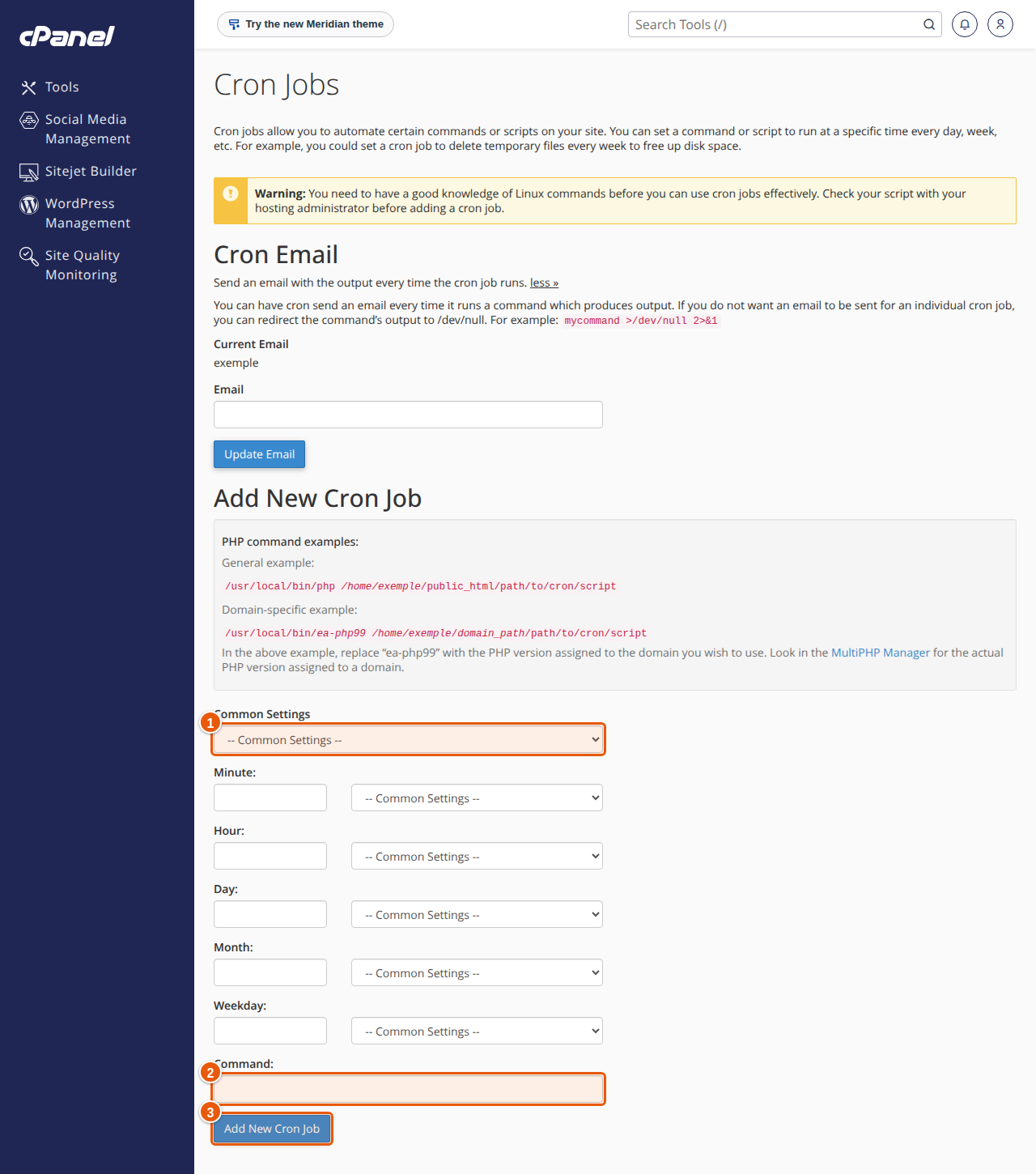
- Open the cron screen. In cPanel, under "Advanced", click Cron Jobs (shown as Cron Jobs in French).
- Enter an email address (optional). In the Cron Email area, type the address that should receive a notification each time the job runs, then click Update Email.
- Choose the frequency. In Add New Cron Job, the Common Settings menu offers common frequencies and fills the fields for you. For example *Once Per Hour (0 * * * ) runs the job once an hour. Otherwise fill in Minute, Hour, Day, Month and Weekday yourself.
- Enter the command in Command, with the absolute path. Example from the cPanel documentation:
/home/your-username/public_html/index.php. - Click "Add New Cron Job". A message confirms it, and the job appears in the Current Cron Jobs table.
The five frequency fields are required, as is the command. Here is how to read the most common values:
| You want | Minute | Hour | Day | Month | Weekday |
|---|---|---|---|---|---|
| Once an hour | 0 | * | * | * | * |
| Every 5 minutes | */5 | * | * | * | * |
| Every day at 3 am | 0 | 3 | * | * | * |
| Every Monday at 8 am | 0 | 8 | * | * | 1 |
The * sign means "every value" and */5 means "every 5 units". These are the usual cron rules.
Edit or delete a job
- Edit: in Current Cron Jobs, click Edit, change what you need, then click Edit Line.
- Delete: click Delete next to the job, then confirm with Delete.
Reduce notification emails
To stop receiving messages for all jobs, empty the address in the Cron Email area. For a single job, click Edit and add >/dev/null 2>&1 at the end of the command (the cPanel documentation gives this line ending as an example). Messages for that job will no longer be sent, errors included.
Expected result
The job appears in Current Cron Jobs and runs at the planned times. If you entered an address in Cron Email, you receive a message each time it runs.
If something goes wrong
- The job seems to do nothing. First run the command once by hand, or keep the notification address filled in to read the error message. Look for a relative path (use the full path), a script without execute permission, or a typo.
- A PHP script is not run. A command made only of the path of a
.phpfile is not always enough: you usually need to call the PHP interpreter at the start of the command. Its path depends on the server; ask support for it. - You get too many messages. See the previous section, or space the runs out.
- The server slows down. The job runs too often or takes too long. Space it out.
- Careful with
rm. The cPanel documentation warns that a badly setrmcommand can erase your home directory's data. Test it on a trial folder first.
Frequently asked questions
Can a job run every minute?
The screen accepts it (* in every field), but the cPanel documentation advises against jobs that are too close together. Prefer an interval that lets the job finish.
At what time does the job run? Do a first test with a short frequency and check the time of the notification message: it is the best way to know which time the server uses.
How do I run a WordPress script? Many WordPress scheduling features trigger on a visit. To run them at a fixed time, the plugin's or application's editor gives the command to use; enter it in the Command field.
Do I need SSH access? No, the Cron Jobs screen is enough to schedule a command.
Going further
Need a cPanel hosting space for your scheduled tasks? Discover our web hosting.